How to Pull Tax Foreclosure Records in Graham County, NC
Pattern: 26CV00****Go to the NC Courts Portal
Navigate to portal-nc.tylertech.cloud. You will see a human verification page.
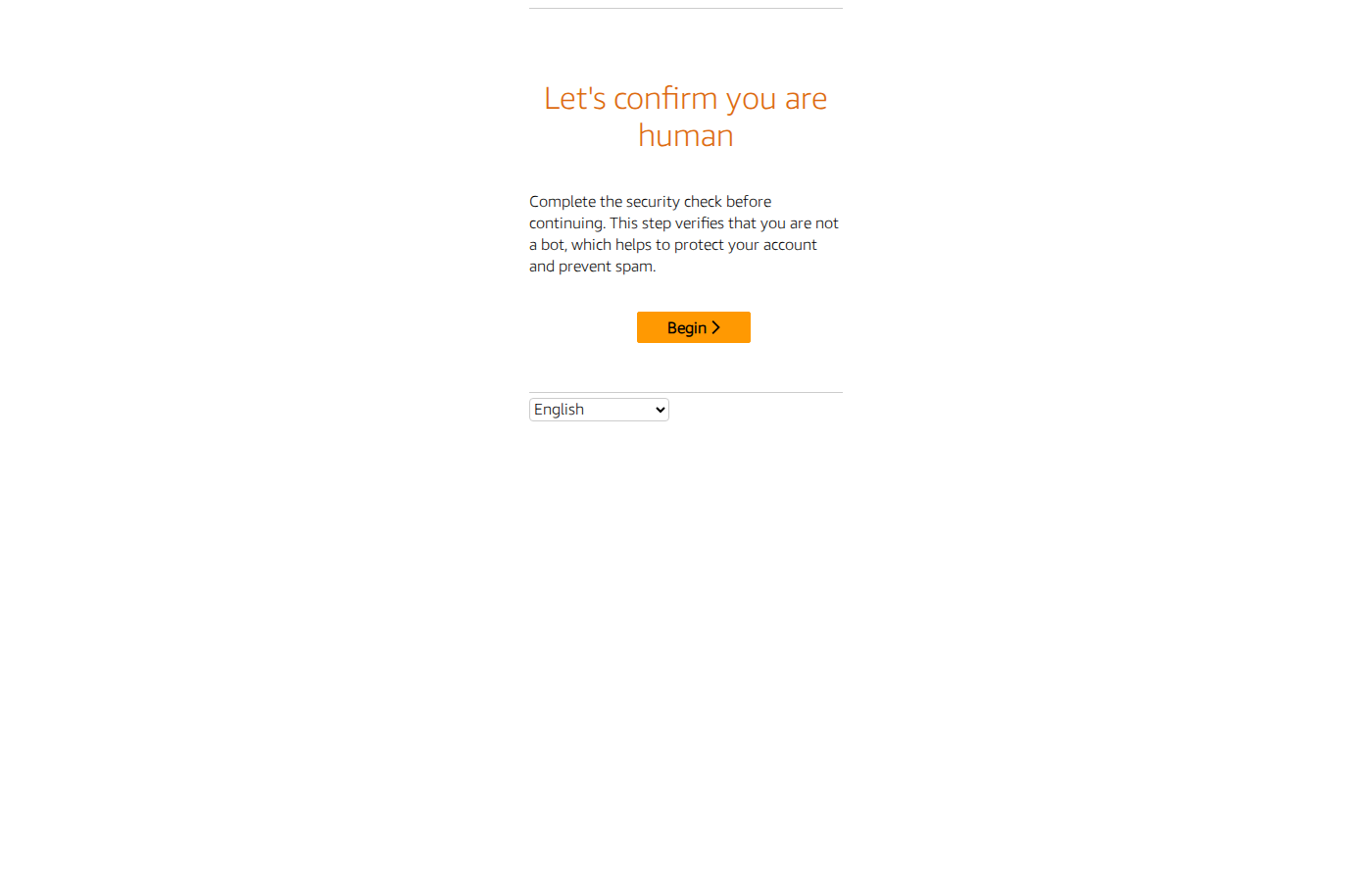
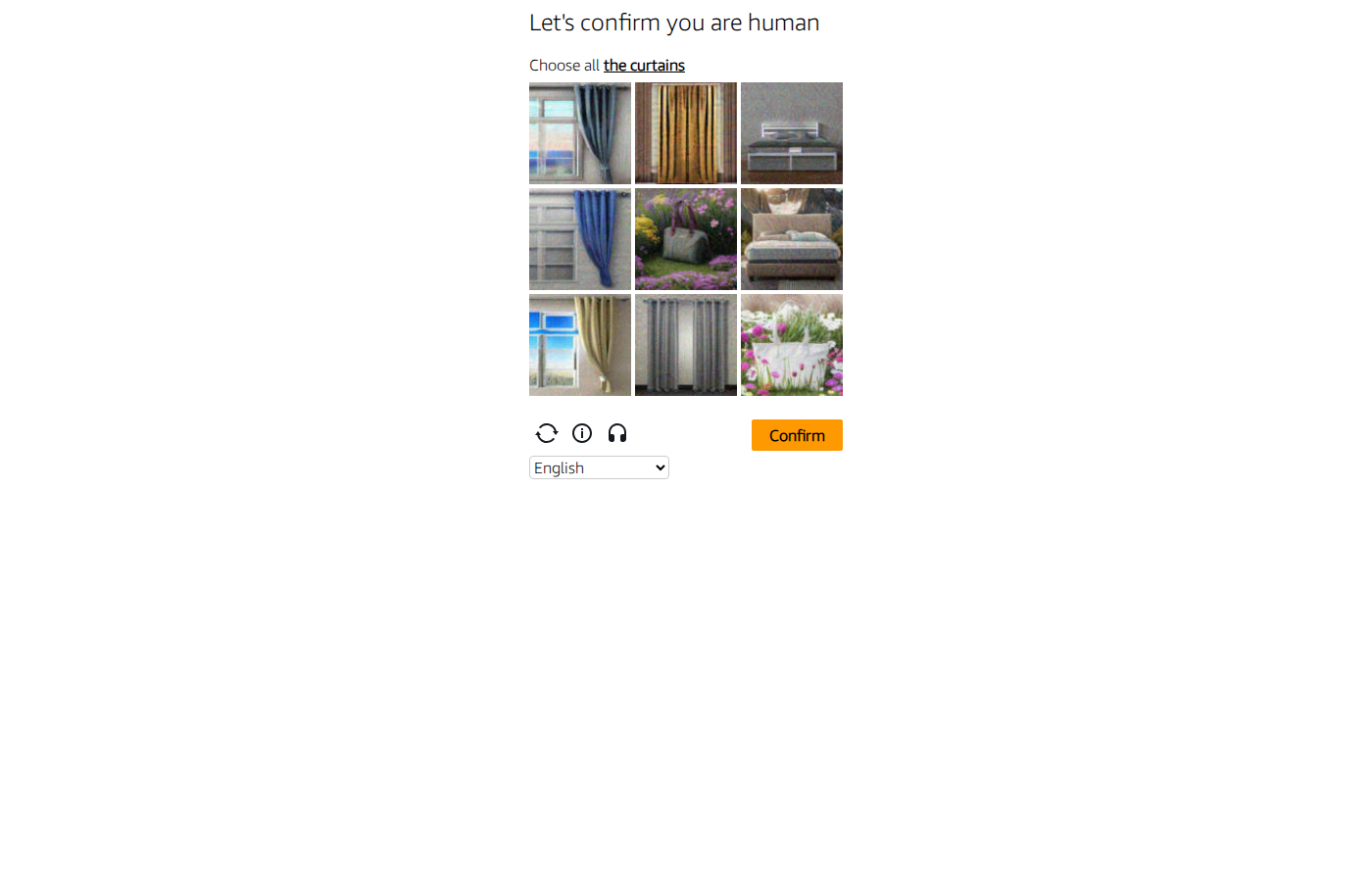
Solve the CAPTCHA
Click Begin, then solve the image grid puzzle (e.g. "Choose all the hats"). Select the matching images and click Confirm. You may need to solve 2 rounds.
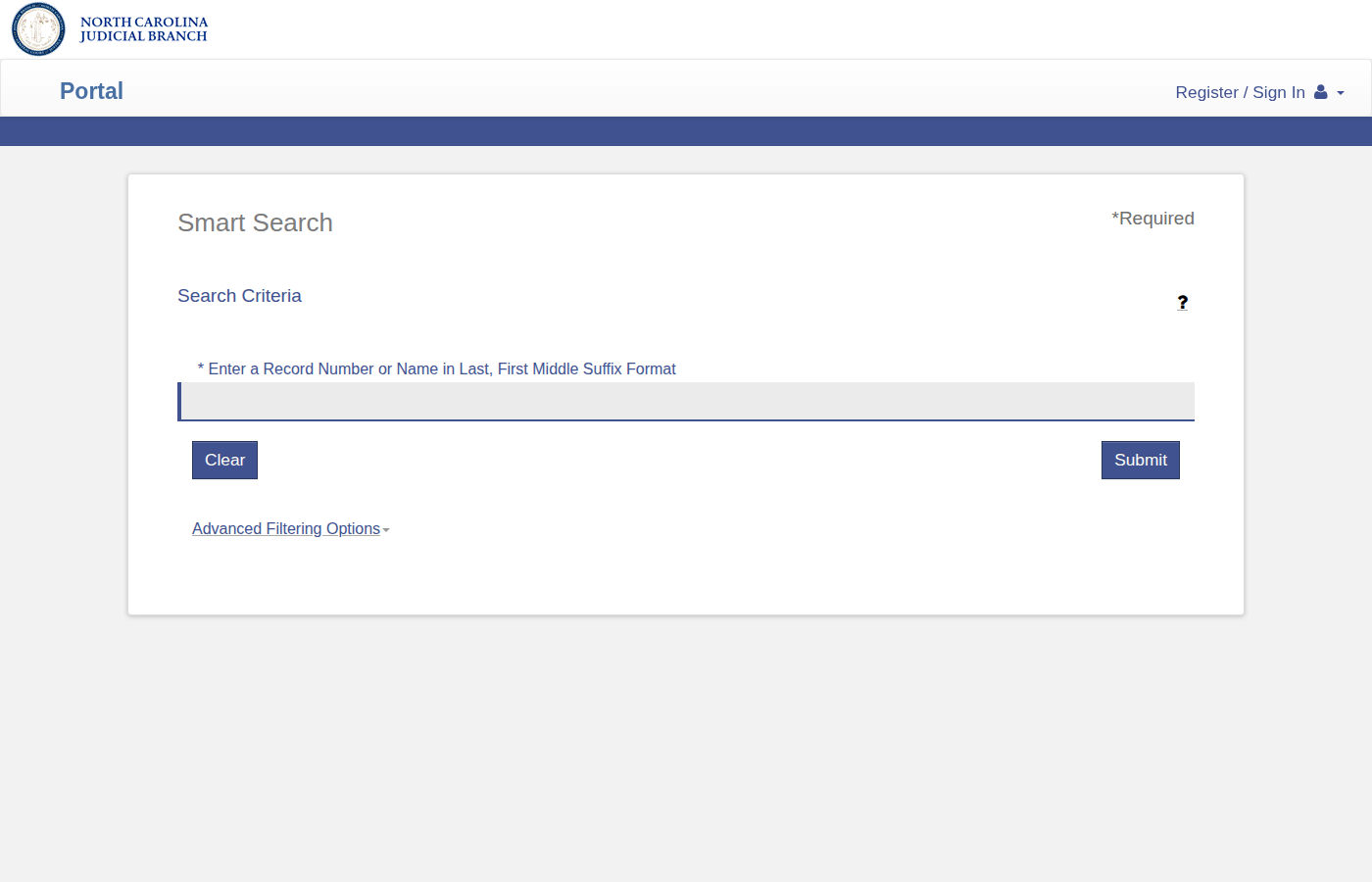
Search Page Loads
After passing verification, the Smart Search page appears with a search field and Submit button.
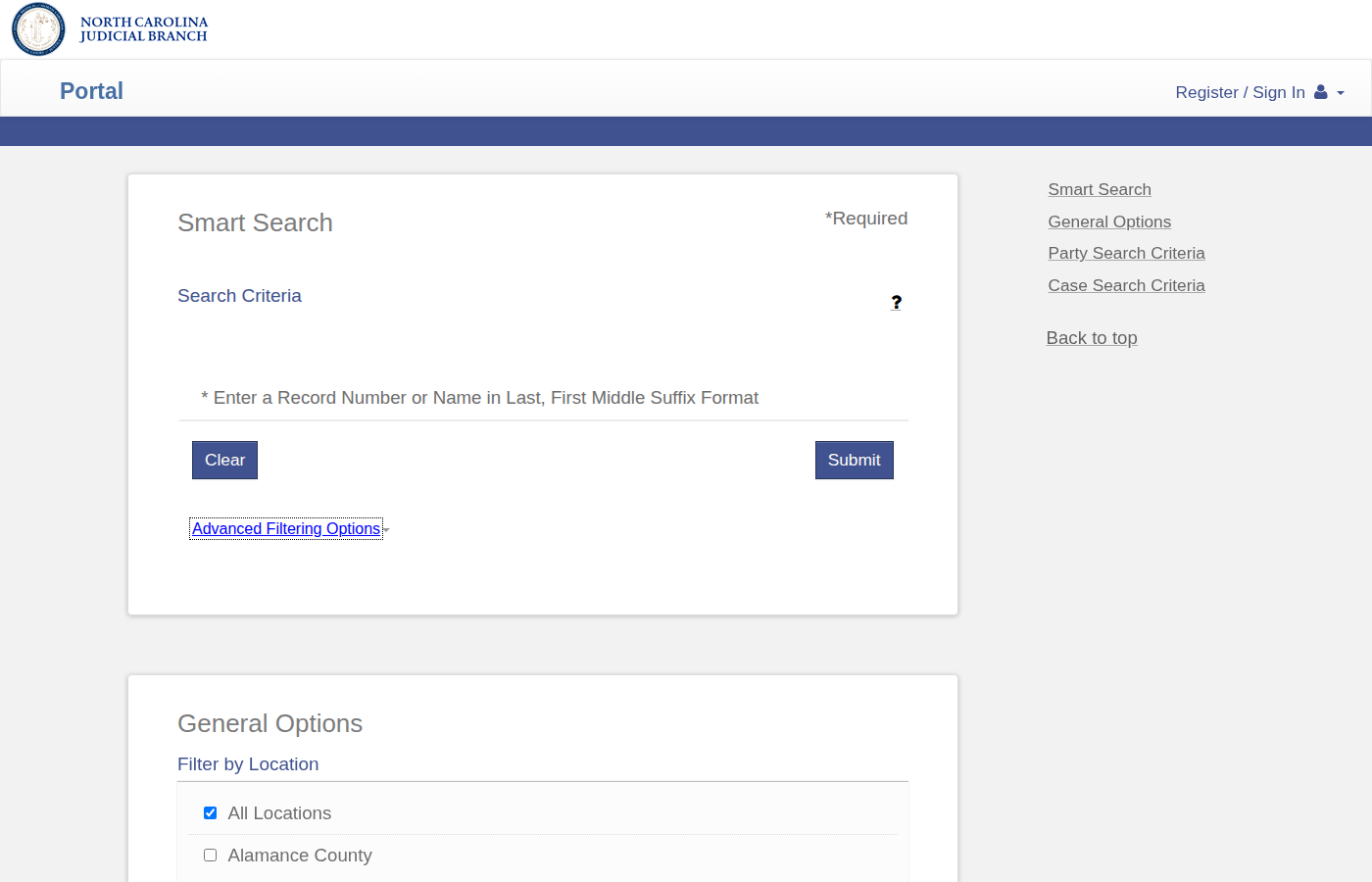
Open Advanced Filtering Options
Click Advanced Filtering Options below the Submit button. This reveals county selection, date filters, and case status filters.
Select Graham County
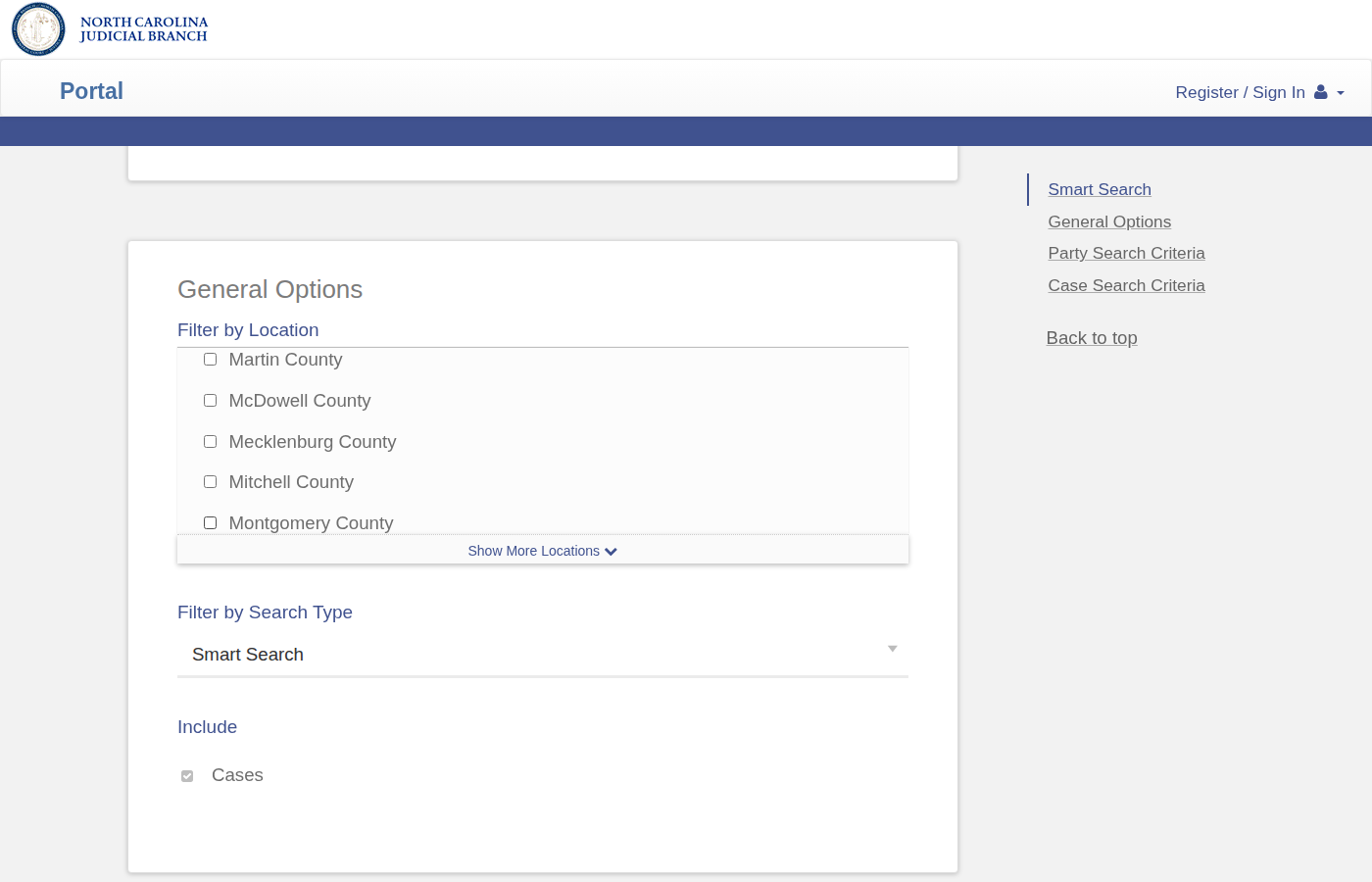
Under Filter by Location, uncheck All Locations. Scroll down and check Graham County only.
Use the CVD Pattern
Enter 26CV00**** in the Search Criteria. This searches Civil District cases which include tax foreclosures. Set Case Status to Pending and set your date range.
Submit & Identify Tax Foreclosures
Click Submit. Look for cases with Case Type: Civil Action Foreclosure (CV) where the plaintiff is a County or Municipality (e.g. "County of Graham VS ..."). These are tax foreclosures — the county is suing for unpaid property taxes.
Important: Property Address
The property address is in the county tax report attached to the complaint — look for PROPERTY DESCRIPTION (e.g. "14401 HAMLET RD"). Do NOT use the defendant's mailing address ("whose last known address is") — the defendant may be an executor or heir living at a completely different address.
Download & Record
Download all PDFs from the case detail page. Record the Case Number, defendant name, filing date, URL, and the property address from the tax report.
Skip the manual work?
CountyPull automates this entire process. Fresh tax foreclosure records from Graham County delivered to your dashboard every morning — clean CSV, skip-trace ready. The free plan includes 100 rows every month.
Get 100 Free Leads →Other guides for Graham County: