How to Pull Probate Records in Stanly County, NC
Pattern: 26E00****Go to the NC Courts Portal
Navigate to portal-nc.tylertech.cloud. You will see a human verification page.
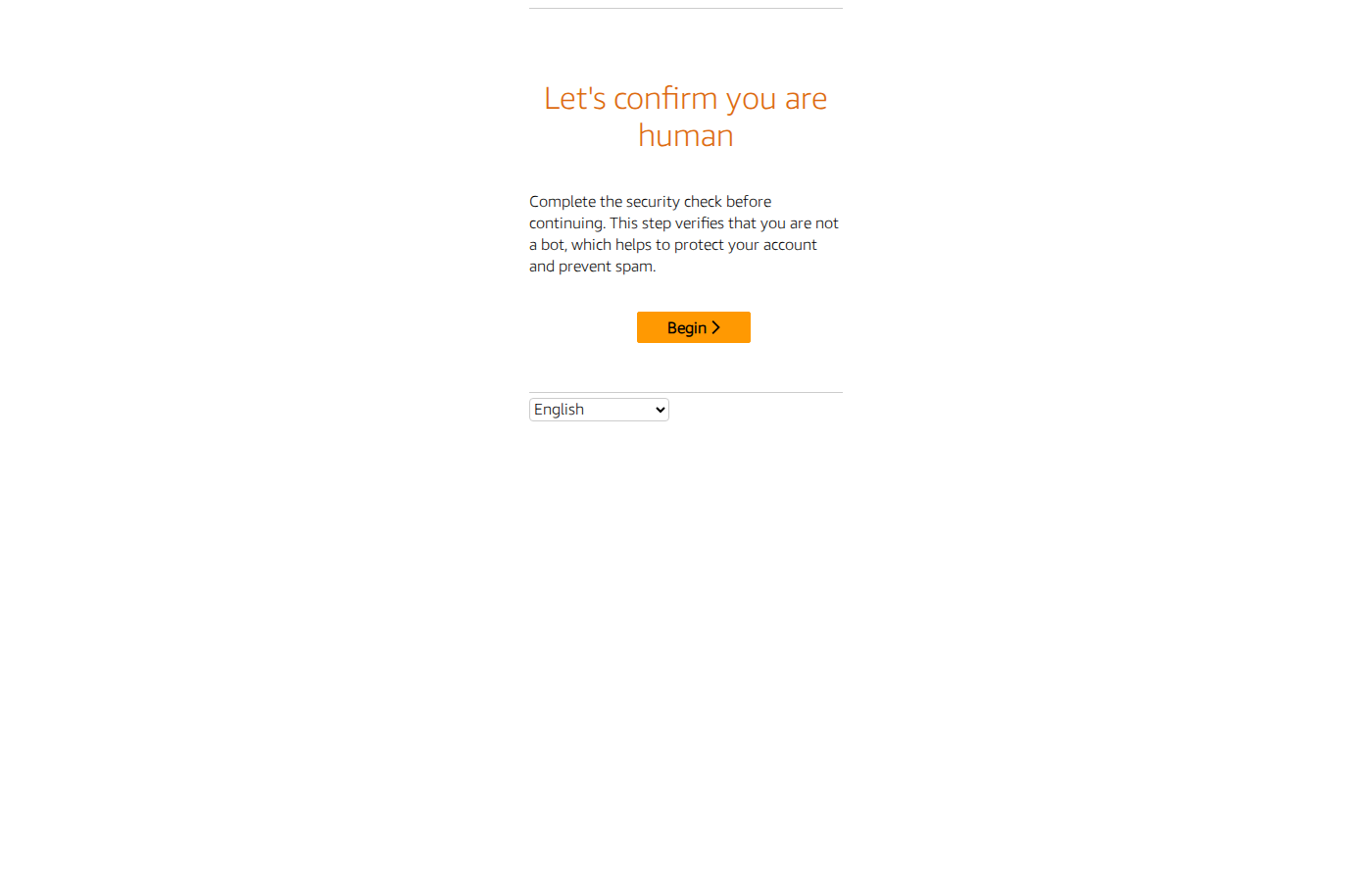
Solve the CAPTCHA
Click Begin, then solve the image grid puzzle (e.g. "Choose all the hats"). Select the matching images and click Confirm. You may need to solve 2 rounds.

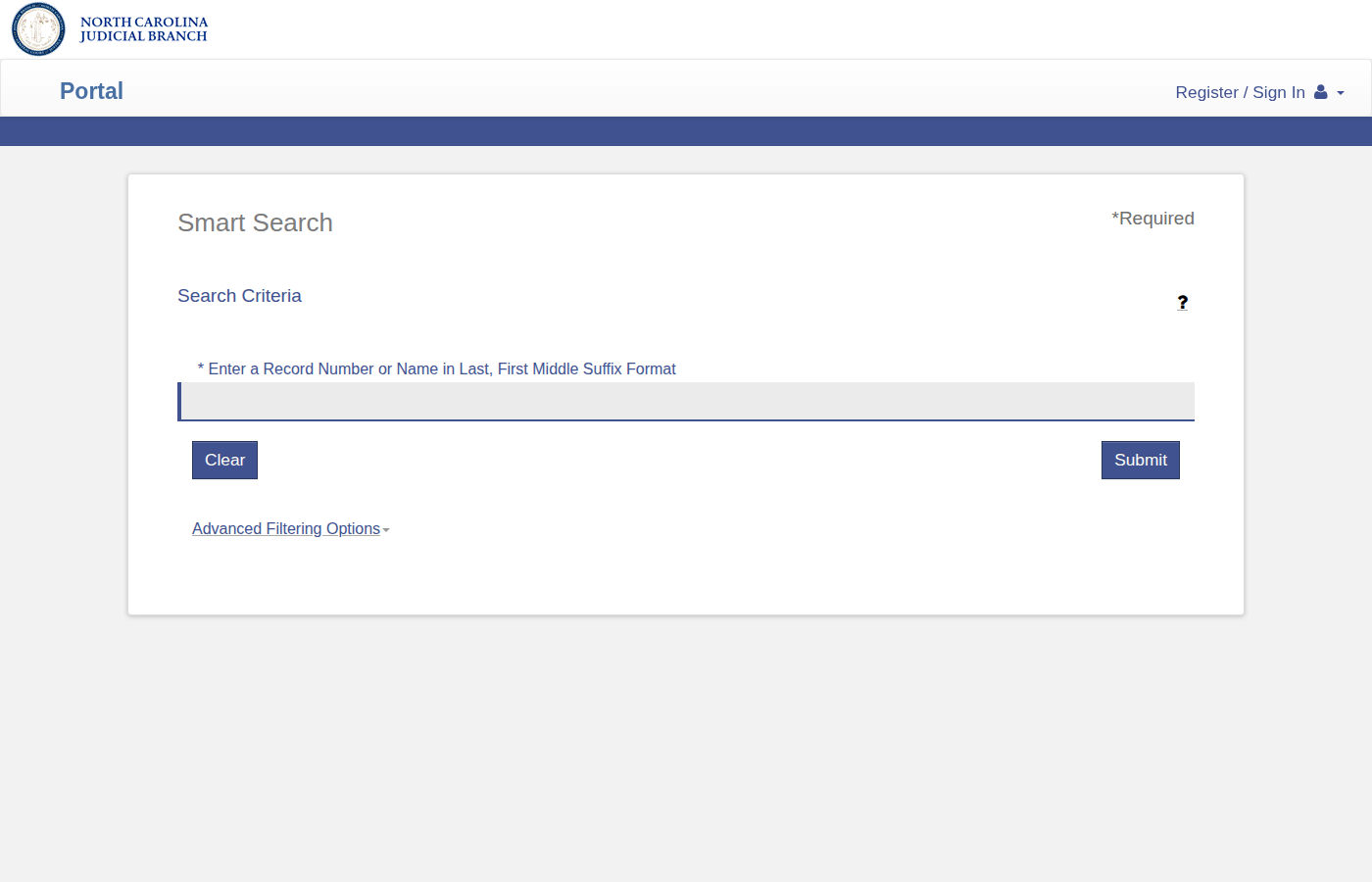
Search Page Loads
After passing verification, the Smart Search page appears with a search field and Submit button.
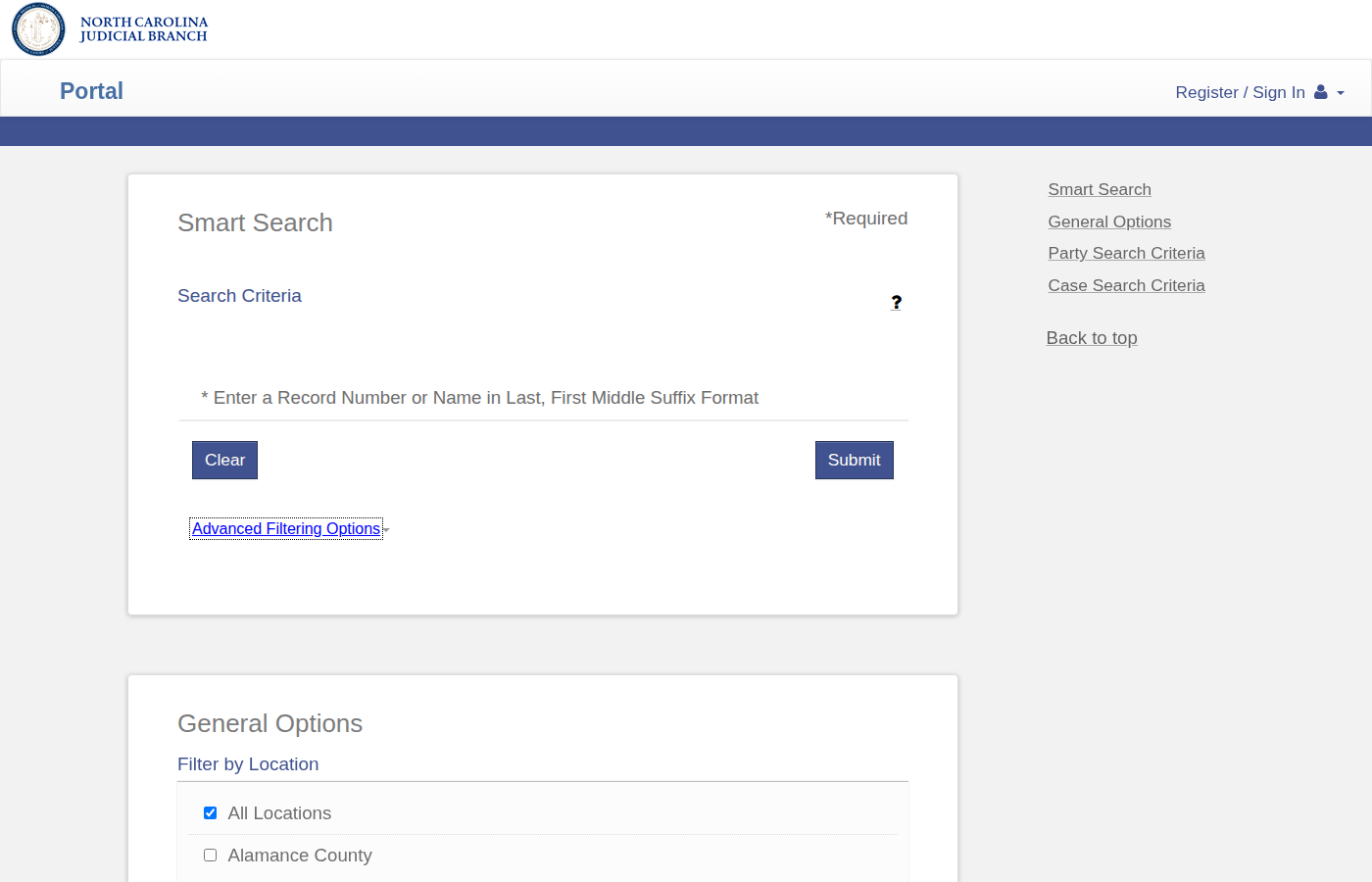
Open Advanced Filtering Options
Click Advanced Filtering Options below the Submit button. This reveals county selection, date filters, and case status filters.
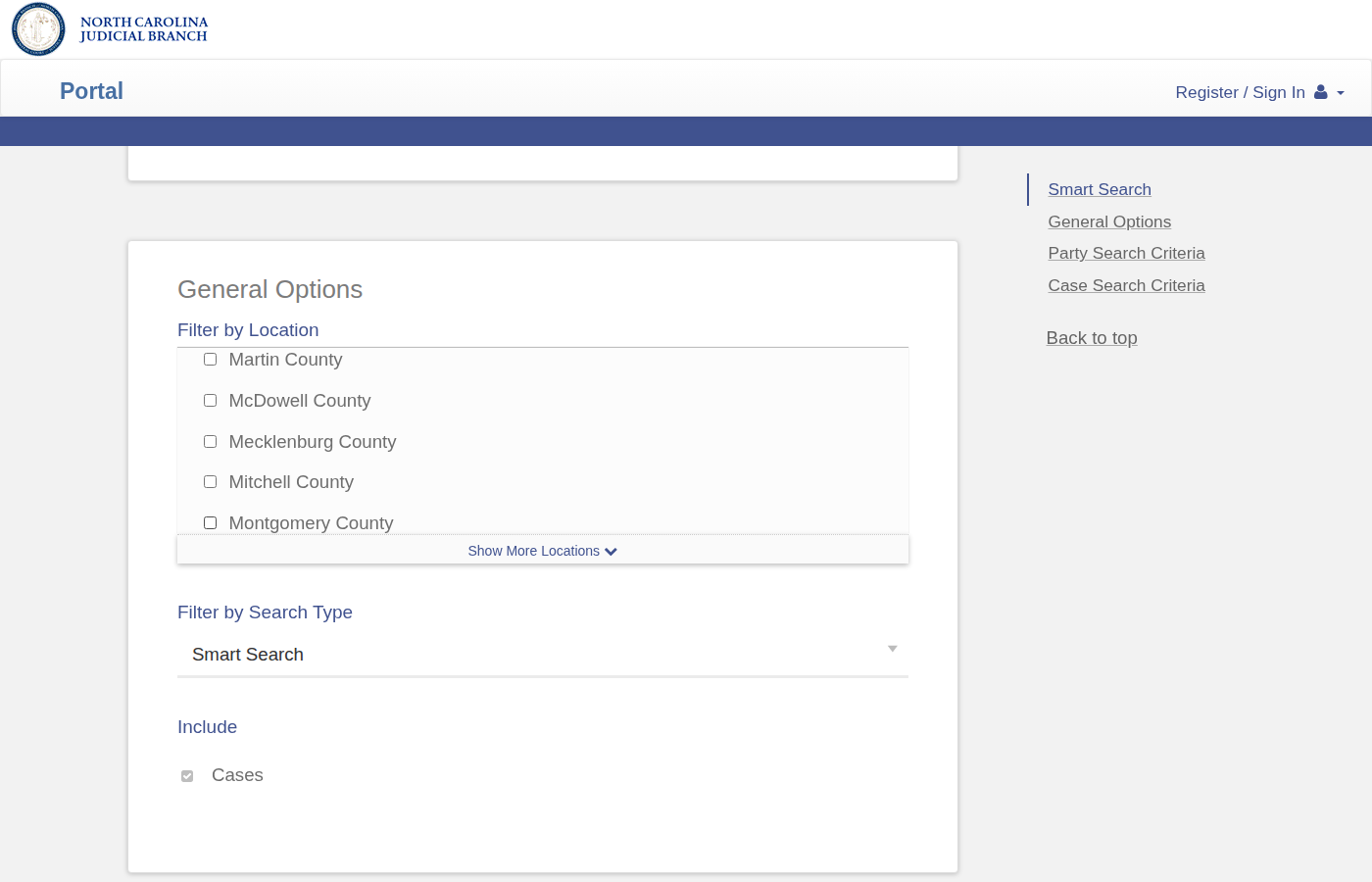
Select Stanly County
Under Filter by Location, uncheck All Locations. Scroll down and check Stanly County only.
Set Filters & Search Pattern
Set the date range in File Date Start/End (e.g. today's date). Set Case Status to Pending to filter active cases only. Enter 26E00**** in the Search Criteria field.
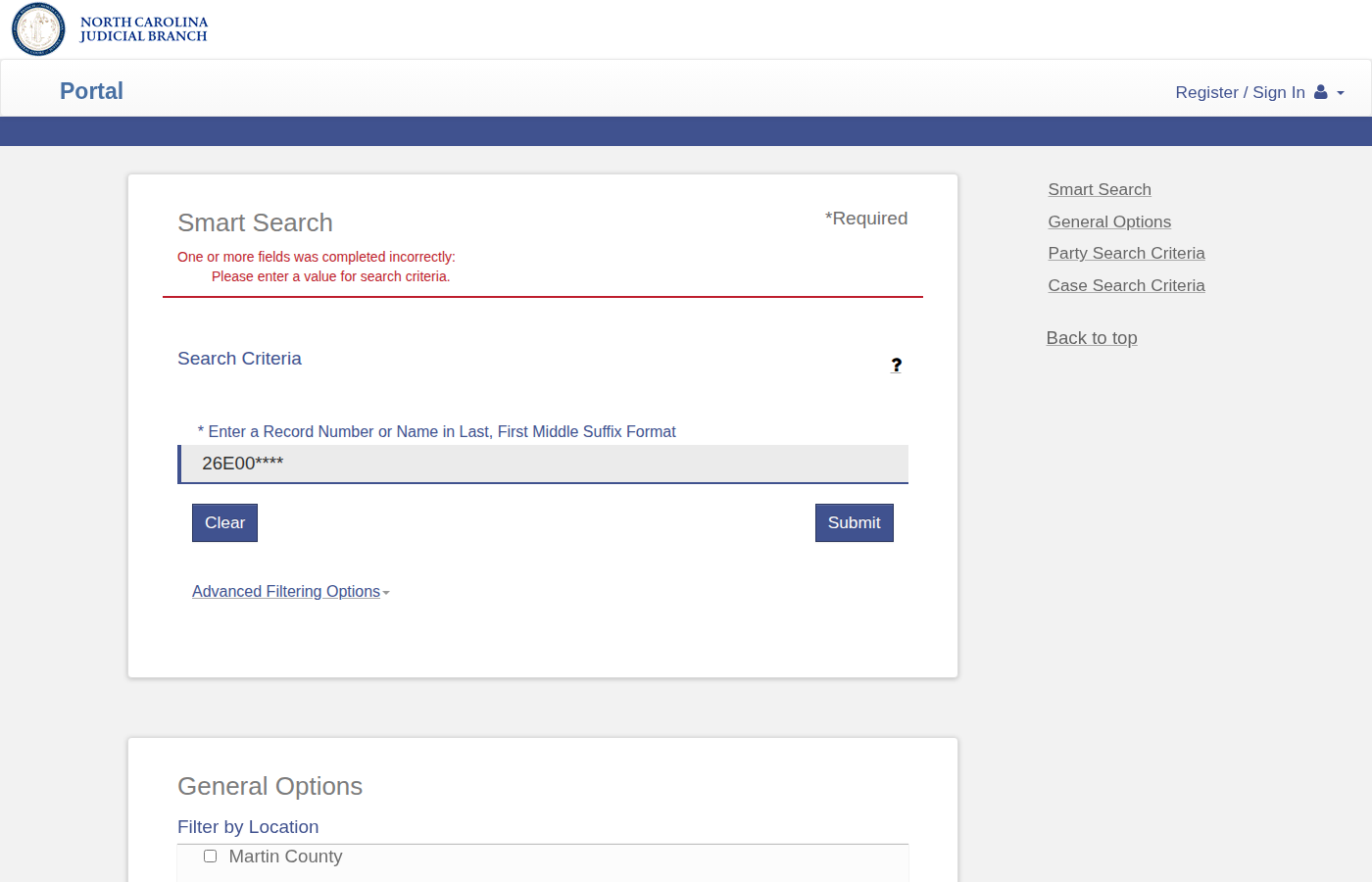
Submit Search & View Results
Click Submit. Wait 10–30 seconds for results to load. The results grid shows Case Number, Style/Defendant, Status, and Location.
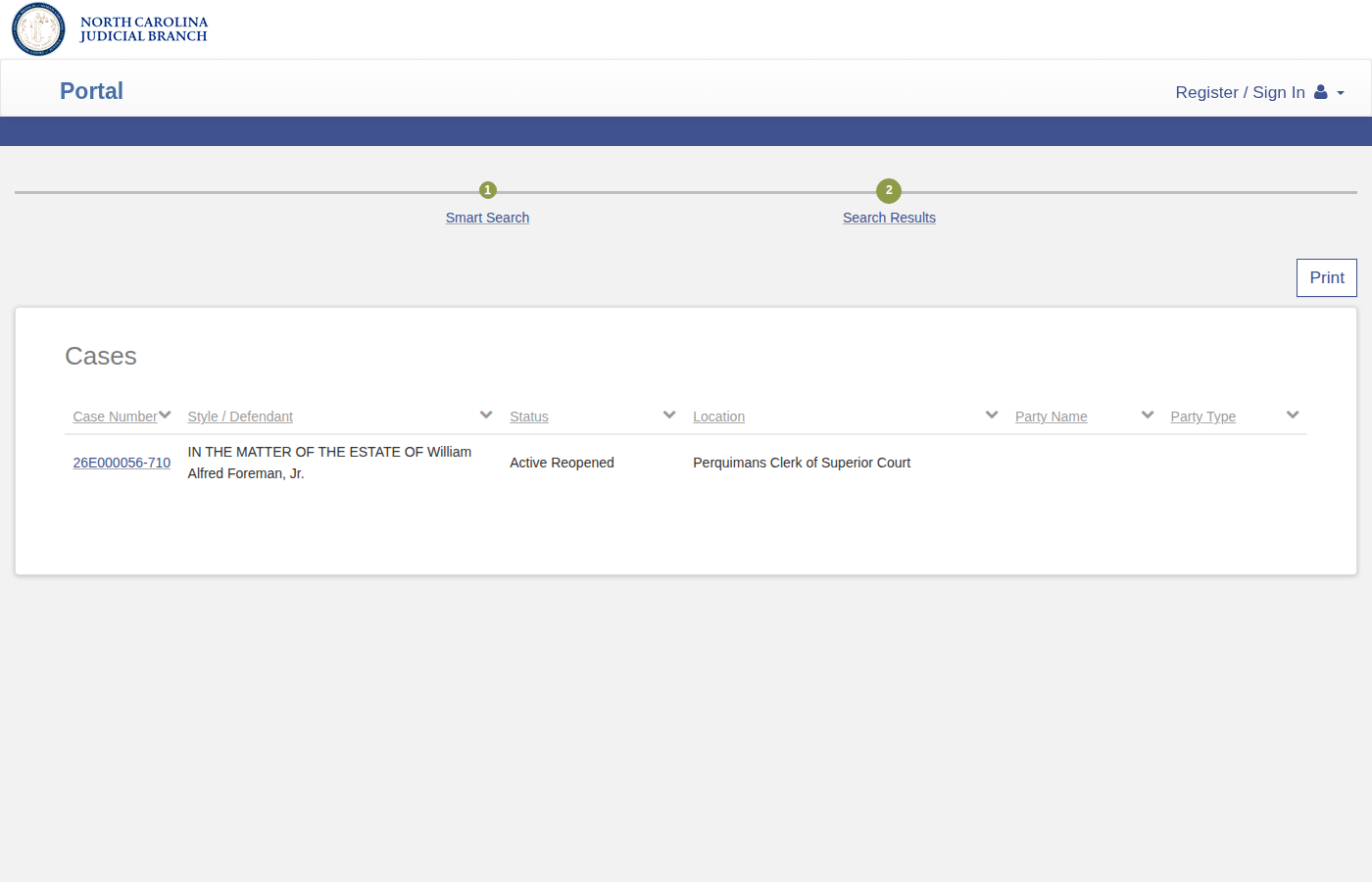
Open a Case
Click a Case Number link to open the case detail page with filing information and associated documents.
Download Documents
On the case detail page, look for document icons (small PDF icons) next to each filing entry in the Register of Actions. Click each icon to download the PDF. Save all documents for the case in one folder.
Record the Data
For each case, record: Case Number, Style/Defendant (estate name), Status, Filing Date, and the URL from the results page. Download all associated PDFs for later processing.
Skip the manual work?
CountyPull automates this entire process. Fresh probate records from Stanly County delivered to your dashboard every morning — clean CSV, skip-trace ready. The free plan includes 100 rows every month.
Get 100 Free Leads →Other guides for Stanly County:
More for this county: Stanly County data sources & free lead lists →